
Settings
Graphics presets and resolution guidance matched to your hardware.
Getting started · 5 steps
PPSSPP does not ship games. Install from the download page, point it at backups you own, then change one graphics setting at a time. If something breaks, check the troubleshooting page before stacking changes.
Use the download page and pick the build for your device. Open PPSSPP once after install so it can create its memstick and configuration folders.
On Android 11 and newer, the first launch may ask you to choose a data folder. Create a PSP folder at the root of storage, open it in the picker, then tap Use this folder and confirm.
PPSSPP reads ISO, CSO, and (from version 1.17) CHD disc images. Run the image as a single file. Do not extract an ISO into hundreds of loose folders.
Dump games from PSP hardware or UMDs you own using the official dumping guide. PPSSPP will not play UMD Video discs or PS1 Classics.
In the game list, long-press or right-click a title and choose Calculate CRC to verify a dump against known databases.
Open the Games tab and choose Browse. Select the folder that contains your disc images, not an individual file. Subfolders are scanned automatically.
On desktop, a simple layout is Documents/PPSSPP Games. On Android, place images in PSP/ISO inside the folder you granted access to.
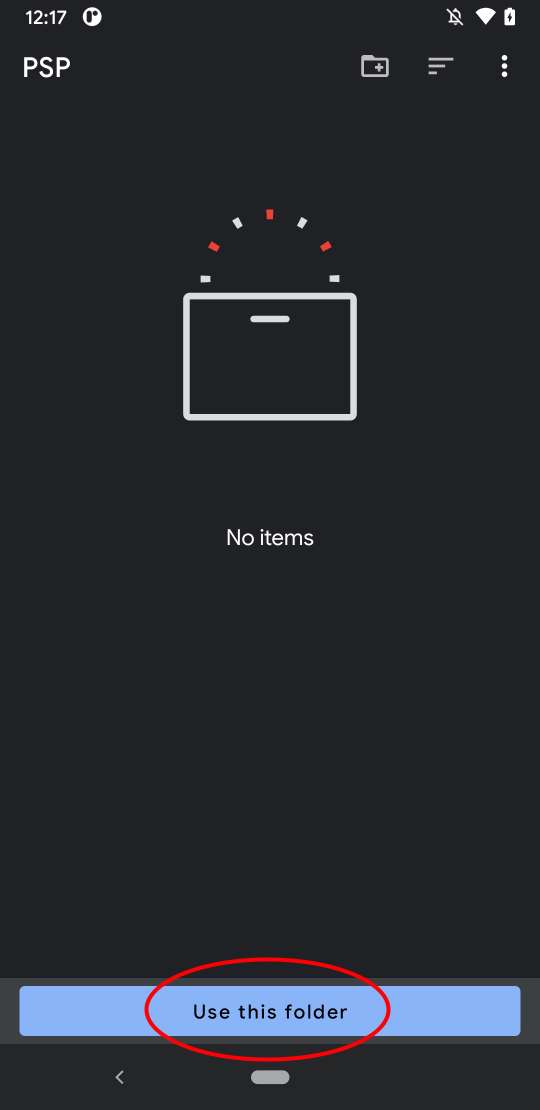
Documents/Games/PSP and try again.
Play first with the default settings. If you see a black screen, broken effects, or an immediate crash, open Settings → Graphics → Backend and try another available option.
On current phones and PCs, Vulkan is often the fastest choice. Fall back to OpenGL on Android or Direct3D 11 on Windows if needed. Change one setting, restart the game, and test before trying anything else.
Device-specific presets and resolution guidance live on the settings page.
Use each title's own save menu for progress you do not want to redo. Save states are fast and convenient, but they are tied to the PPSSPP version and settings that created them.
On desktop, open the memstick from File → Open Memory Stick. On mobile, go to Settings → System → Show Memory Stick folder. Back up the PSP/SAVEDATA folder before updates, reinstalls, or device moves.
Keep at least one backup outside the PPSSPP app folder and outside cloud sync folders that may lock files while you play.
| Format | What it is | When to use it |
|---|---|---|
| ISO | Uncompressed disc image | Highest compatibility. Largest file size. |
| CSO | Compressed ISO, unpacked while playing | Phones with limited storage. Heavy compression can stutter in action titles. |
| CHD | Compressed hunks in MAME-style archives | Smaller archives. Requires PPSSPP 1.17 or newer. |
Version 1.20.4 can also load an ISO from some 7-Zip archives directly. Homebrew belongs in PSP/GAME/ on the memstick, not mixed with commercial disc images.
Graphics presets and resolution guidance matched to your hardware.
Black screen, low FPS, and missing games: fix one thing at a time.
Official PPSSPP 1.20.4 builds for every supported platform.
Download the official PPSSPP 1.20.4 build for your platform, then return here to finish setup.